Using pixmoat
Pixmoat shows you what changed on a page before you merge your code. Your Playwright tests take screenshots, and Pixmoat compares them with the last approved images. Those approved images are called baselines.
You review each change and decide whether it belongs in the product. For example, a button color you changed on purpose can be approved. A checkout form cut off at a small screen size needs a fix.
New to Pixmoat? Your first build walks through the setup and your first review.
The review loop
| Step | What happens | What you do |
|---|---|---|
| Capture | Your Playwright tests send screenshots to one build. | Run the tests in CI. |
| Compare | Pixmoat compares the captures with the branch’s baselines. | Open the build and find New or Changed screenshots. |
| Review | Your decisions stay staged while you inspect the build. | Approve expected changes or Reject regressions with a comment. |
| Finish | Approved screenshots become the next baselines for that branch. | Select Finish review after the required decisions and approvals are complete. |
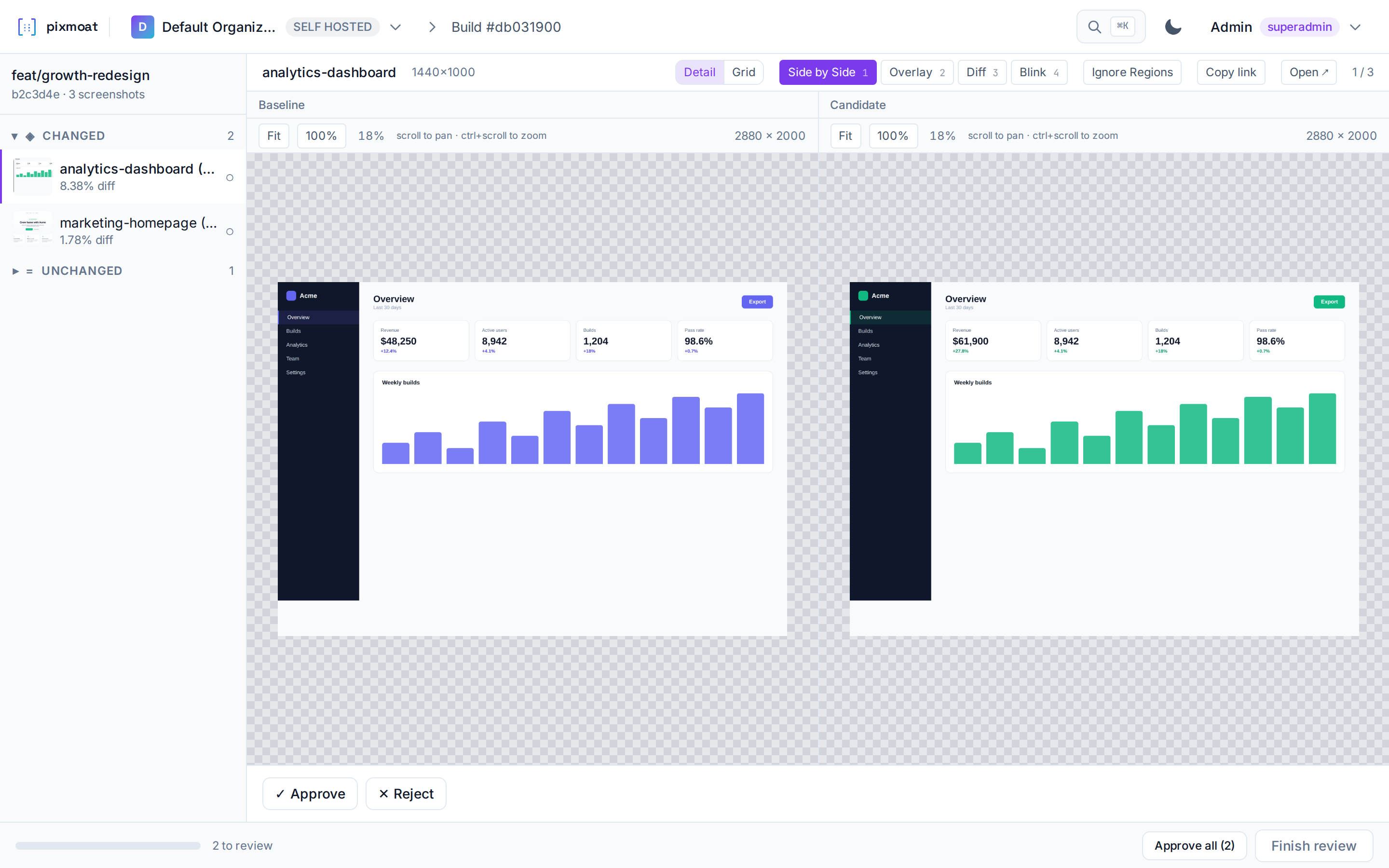
In this example, the color change is visible in the side-by-side view. Check that it matches the requested work before you approve it. Open the example at full size.
Start with a project
From Projects, open an existing project or create a new one. A project keeps the screenshots, builds, branches, and review history for one application or interface.
To connect the project to Playwright, create a project access token in the project’s Settings → Tokens and add it to your CI variables. The Playwright integration guide shows the complete connection.
Project settings list their sections on the left on desktop. On smaller screens, use the Settings section selector. The selected section stays in the URL, so reloading the page or sharing its link opens the same section.
Explore the demo
The demo lets you review sample builds and try approval and rejection decisions. These decisions reset automatically. Project settings, project creation, member management, and billing are read-only in the demo.
Restricted pages explain the limit before you enter data. Controls that would change these settings are disabled, and the Create an account link opens registration. Use your own account to configure projects and invite your team.
Check accessibility history
Open Accessibility from the project navigation to see its audit history. Choose a branch to view its results, or use Compare branches to compare two branches. The comparison appears after its data loads.
If data cannot load, the page shows an error and a Try again button. A failed request does not mean auditing is disabled. If auditing is disabled, the page links directly to the Accessibility section of project settings. The demo uses the same history page as registered accounts.
Run a build
When your Playwright suite runs, pixmoat collects its screenshots into a build and compares each one with its baseline. Each screenshot is tagged New, Changed, Not changed or Removed; Builds and snapshots explains each tag.
Before you approve a Removed screenshot, read Completeness and removals. Approving one retires its baseline.
Open a build from the project to see the screenshots and their review status.
Review a build
Select a new or changed screenshot to compare the baseline with the current capture. Use the visual modes to inspect the change, then choose:
- Approve when the change is intentional and should become part of the product.
- Reject when the change is unexpected or needs a code fix.
Decisions are staged while you work. They are applied to the baseline only after you select Finish review. This means you can change a decision before finishing.
For a more detailed walkthrough, see Review visual changes.
After the review
When the required decisions and approval policy are satisfied, finishing the review saves the approved screenshots as baselines for that branch. Review complete lists everything finishing a review changes. If a change is rejected, fix the code and run the build again.
If nothing changed, pixmoat finalizes the build automatically because there is nothing to review.
Good review habits
- Capture baselines in CI. Use the same browser, fonts, viewport and test data on later runs. A laptop capture can differ from CI even when the page has not changed.
- Check the first screenshot before approving it. New means there is no baseline, so there is no earlier image to tell you whether the page is correct.
- Review the whole change. A small difference percentage can still hide a broken button or unreadable text.
- Check why a screenshot is Removed. A skipped test can look like a deleted page. Approving a removal retires its baseline.
- Write a useful rejection comment, such as “The Pay button is cut off at 390px,” so the next reviewer knows what to check.
- Review accessibility, performance and console findings separately when your tests collect them. Matching screenshots do not prove those checks passed.
- Finish the review before treating the new images as baselines. If a CI gate already failed, retry that job after review; it does not rerun itself.
Review visual changes explains the decisions in detail. Approval policy explains when another reviewer must sign off.
Find the right place
- Projects, choose an application and open its builds.
- Usage & capacity, see how much of the organization’s project, seat, and screenshot capacity is in use.
- Billing & usage, manage the plan and additional capacity.
- Organization settings, manage members and their access.
- Settings in a project, manage tokens, review behavior, integrations, and project-specific settings.
The shortest path for a new teammate
- Open the project linked to the work you are changing.
- Open the latest build for your branch.
- Review screenshots marked New or Changed.
- Approve expected changes, reject regressions, and finish the review.